
Reader Settings
Control the page fit, the tap regions, the colours, and whether a setting applies to one title or to all of them.
There are two ways to the reader settings. Open the menu in the reader, or go to Settings → Reading → Reader Settings for the defaults.
Many settings have an Applies To control. Use it to set a value for the current title, or for all titles.
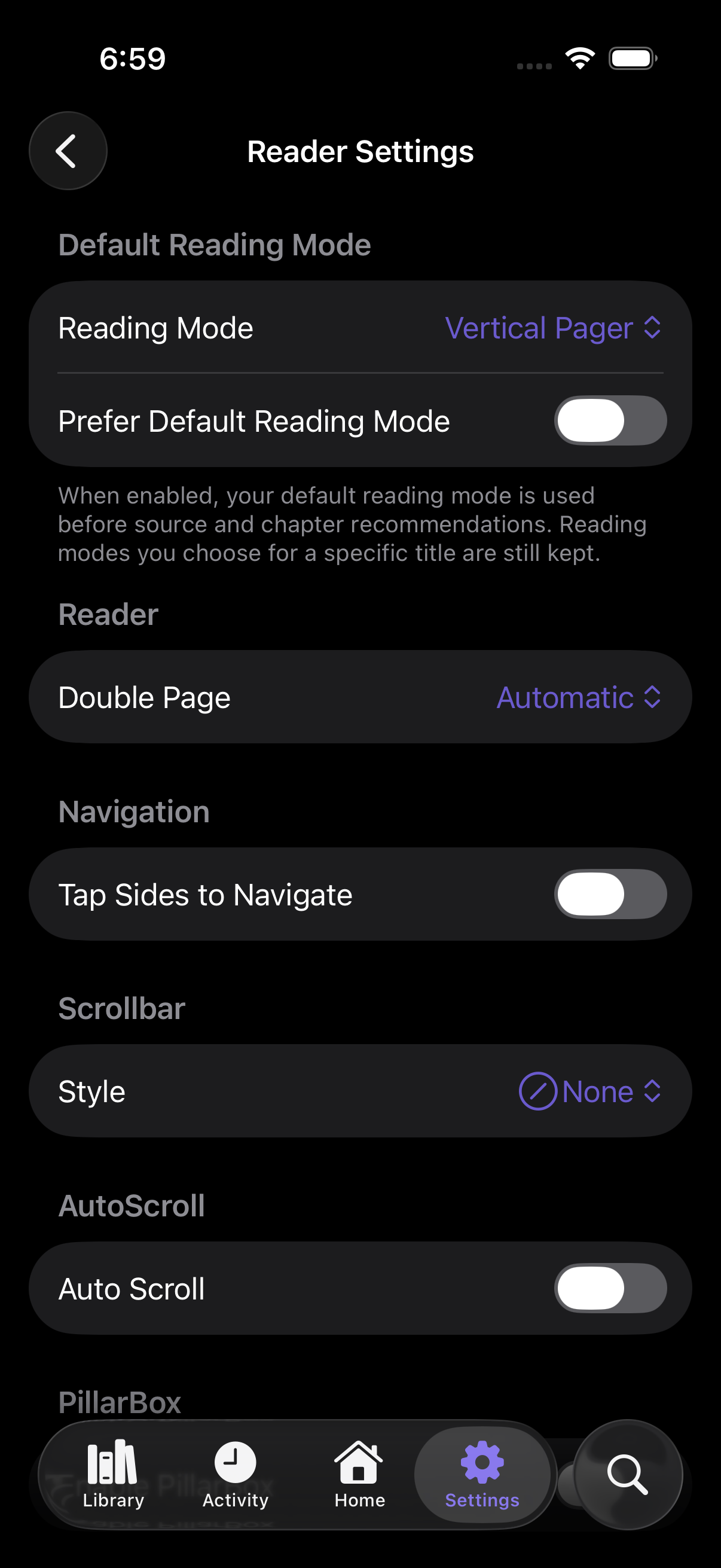 Reader Defaults
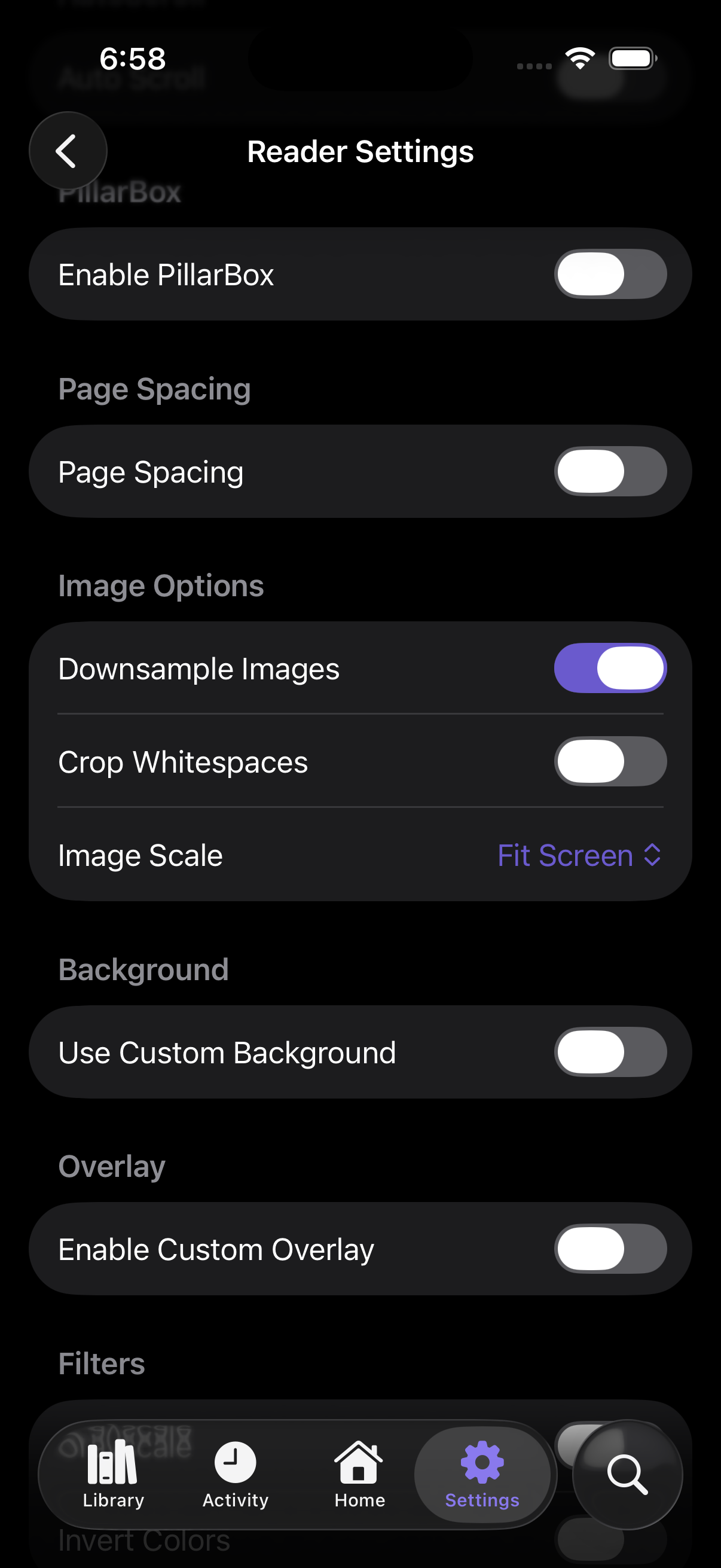 Image Options
Fit the page
- Image Scale selects
Fit Screen,Fit Height,Fit WidthorSmart Fit. Smart Fit decides for each page from its shape. Use it when a chapter has single pages and double pages together. - Page Fit and Enable PillarBox control the empty space around a page.
- Crop Whitespaces removes the empty margins of a scanned page.
- Downsample Images lowers the memory that a large page needs. The page is then less sharp.
Double pages
- Double Page shows two pages together, as a printed book does.
- First Page Alone keeps the cover on its own, so that the other pages pair correctly.
Move through a chapter
- Tap Sides to Navigate turns a page when you touch the edge of the screen.
- Navigation Region Style selects the arrangement of the tap regions.
- Invert Navigation Regions exchanges forward and back.
- Display Navigation Guide draws the tap regions on the screen.
- Navigation Haptics and Haptic Feedback give you a physical response.
Continuous modes
- Auto Scroll moves the page down at a constant rate.
- Page Gaps and Page Spacing put a space between the pages of a vertical layout.
- Transition Pages shows a marker between two chapters.
Colour
- Use Custom Background and Background Color set a colour that is not black or white.
- Grayscale and Invert Colors change the page colours.
- Enable Custom Overlay, Overlay Color and Overlay Blend Mode put a tint on the page. Use a tint to lower the glare at night.
Global chapter settings
Settings → Reading → Global Chapter Settings controls the chapter list, not the page view. Set the default sort order and the default filters for each title there.
Stop in the middle of a chapter
You can make the reader small and do something different in the app. Open it again at the same page.
If Resume Live Activity is on in Settings → Notifications, you can leave the app and go back with a Live Activity.